
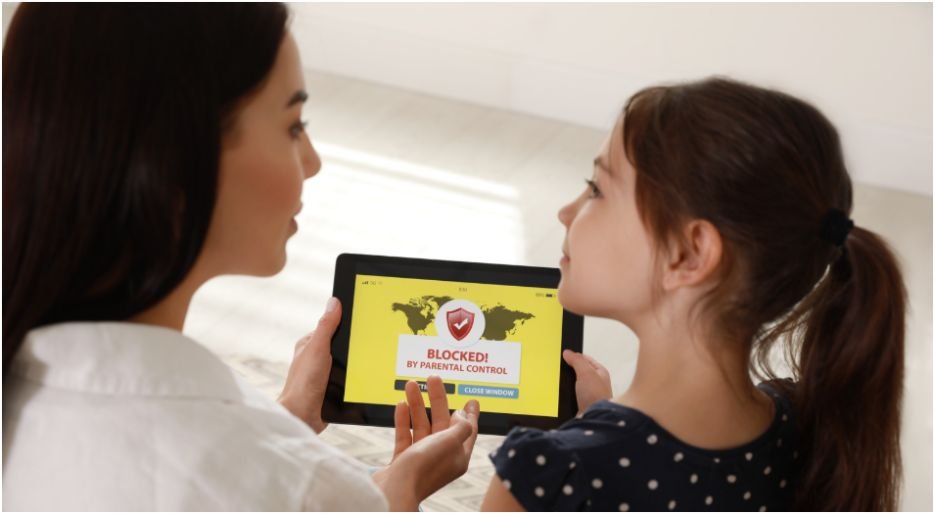
I still remember the first time I handed a tablet to a child thinking, “It’s just cartoons, how bad can it be?” Within minutes, the algorithm proved me wrong.
That moment pushed me to explore parental control apps for young children in a real, practical way—not just installing them, but actually using them daily.
Because here’s the truth: apps alone don’t fix everything. The real magic happens when you combine the right tools with simple routines that fit your everyday life.
Key Takeaways
| What Matters Most | Why It Works |
| Built-in controls first | Safer, more reliable, and free |
| Whitelist websites | Strongest protection for young kids |
| Combine layers | Apps + filters + habits = real safety |
| Set routines, not rules | Kids follow patterns better than restrictions |
| Stay involved | Tech works best when parents stay present |
Why Are Parental Control Apps for Young Children Not Enough Alone?

I learned this the hard way. I installed an app, set limits, and assumed everything was handled. It wasn’t.
Kids are curious. They tap, swipe, and explore faster than we expect. If one filter misses something, they find it.
That’s why I stopped relying only on tools. I started thinking in layers. I used device controls, web filters, and daily routines together.
That shift changed everything. Suddenly, screen time felt controlled instead of chaotic.
Which Parental Control Apps for Young Children Actually Work Best?
When I tested different tools, I noticed something interesting. The best options were already built into the devices.
On Android tablets, Google Family Link became my go-to. It let me approve apps, set daily limits, and even track location. It felt simple and powerful at the same time.
For iPads, Apple Screen Time worked seamlessly. I didn’t need extra apps. I could block purchases, filter content, and even blur sensitive images in messages.
Then there were third-party tools like Qustodio and Norton Family. I found them useful when managing multiple devices or needing extra monitoring features.
But honestly, I always start with built-in tools first. They feel safer and more reliable.
How Do I Set Up Filters on a Tablet Without Overcomplicating It?
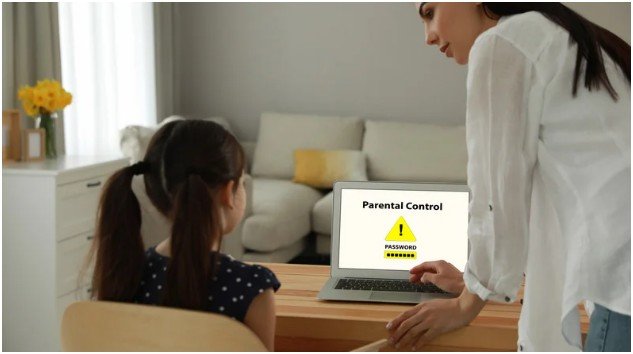
At first, I thought setting filters would take forever. It doesn’t.
On Android tablets, I use Family Link to control everything remotely. I set app age limits, block explicit sites, and turn on SafeSearch. It takes about 10 minutes.
On iPads, Screen Time gives even tighter control. I can allow only specific websites, block adult content, and manage everything from one screen.
Amazon Fire tablets simplify things further. Their dashboard automatically filters content based on age. I especially like the “Learn First” feature that unlocks games only after educational time.
The biggest upgrade I made? Switching to “allowed websites only.” That one change removed 90% of my worries.
What Features Should I Focus on First?
When I started, I tried to use every feature. That only made things confusing.
Now I focus on a few essentials that actually matter.
App restrictions come first. I always set age limits so kids can’t download random apps. It removes a lot of risk instantly.
Web filtering comes next. Blocking explicit sites works, but whitelisting approved sites works even better. It creates a controlled digital environment.
Then I manage screen time. Instead of strict limits, I use routines. For example, no screens before school and no tablets after bedtime.
These small changes make a huge difference over time.
How to Set Up Parental Control Apps for Young Children Step by Step

I keep this process simple because complicated systems never last.
First, I choose the built-in tool based on the device. If it’s Android, I set up Family Link. If it’s an iPad, I use Screen Time.
Next, I set content restrictions. I choose age-appropriate ratings for apps, movies, and games. This step blocks most unwanted content immediately.
Then I configure web filtering. I either block explicit sites or switch to “allowed websites only.” For younger kids, I always choose the stricter option.
After that, I turn on search filters like SafeSearch. This prevents inappropriate images from appearing in search results.
Finally, I create a daily routine. I set downtime hours, limit usage, and explain the rules to the child. That conversation matters more than any setting.
How Do I Make These Apps Work in Daily Life?
This part surprised me the most. The setup matters, but the routine matters more.
I treat screen time like any other daily habit. Just like meals or bedtime, it follows a pattern.
For example, I allow tablet time after homework or chores. I don’t negotiate every day. The routine handles it.
I also stay involved. Sometimes I sit with them and watch what they’re doing. It builds trust and keeps things transparent.
If you want more ideas, I always use these strategies to in my daily routine to keep kids safe online. Those helped me build a balanced approach beyond just apps.
Which Tablet Is Easiest for Parental Controls?
| Device Type | Ease of Use | Best Feature |
| Android Tablets | Moderate | Flexible controls with Family Link |
| iPad | Easy | Deep integration and safety features |
| Amazon Fire Kids | Very Easy | Automatic age-based filtering |
From my experience, Amazon Fire tablets work best for very young kids. They require the least setup.
iPads offer the strongest safety features, especially for communication monitoring.
Android tablets give the most flexibility, but they need a bit more setup time.
What Mistakes Should I Avoid With Parental Control Apps for Young Children?

I made a few mistakes early on, and they taught me a lot.
I relied too much on apps without setting filters. That left gaps in protection.
I also ignored communication. Kids don’t understand restrictions unless we explain them. Once I started talking openly, things improved quickly.
Another mistake was setting strict limits without flexibility. That created frustration instead of balance.
Now I focus on consistency instead of control. That shift made everything smoother.
Why Parental Control Apps for Young Children Work Best With Real-Life Habits
Technology helps, but habits make it sustainable.
When I combined apps with routines, everything felt easier. I didn’t have to constantly monitor or correct behavior.
Kids started understanding boundaries naturally. They knew when screen time was allowed and when it wasn’t.
That’s when I realized the goal isn’t control. It’s guidance.
The Reality Check Every Parent Needs
I used to think installing apps solved everything. It doesn’t.
Parental control apps for young children work best when you treat them as tools, not solutions.
You still need conversations. You still need routines. And yes, you still need to stay involved.
But once you combine all three, everything feels lighter.
And here’s my honest tip: don’t aim for perfect control. Aim for consistent habits. That’s what actually keeps kids safe—and keeps your sanity intact.
FAQs
1. What are the best parental control apps for young children?
Built-in tools like Google Family Link and Apple Screen Time work best. They offer strong controls, better privacy, and no extra cost. Third-party apps help when managing multiple devices.
2. Should I block websites or allow only specific ones?
For younger kids, I always choose “allowed websites only.” It creates a safe environment and removes exposure to harmful content completely.
3. How much screen time should young children have?
I follow simple routines instead of strict limits. Usually 1–2 hours with breaks works well, depending on age and daily activities.
4. Do parental control apps replace supervision?
No, they support it. Apps help manage access, but your involvement and communication still play the biggest role in keeping kids safe.