
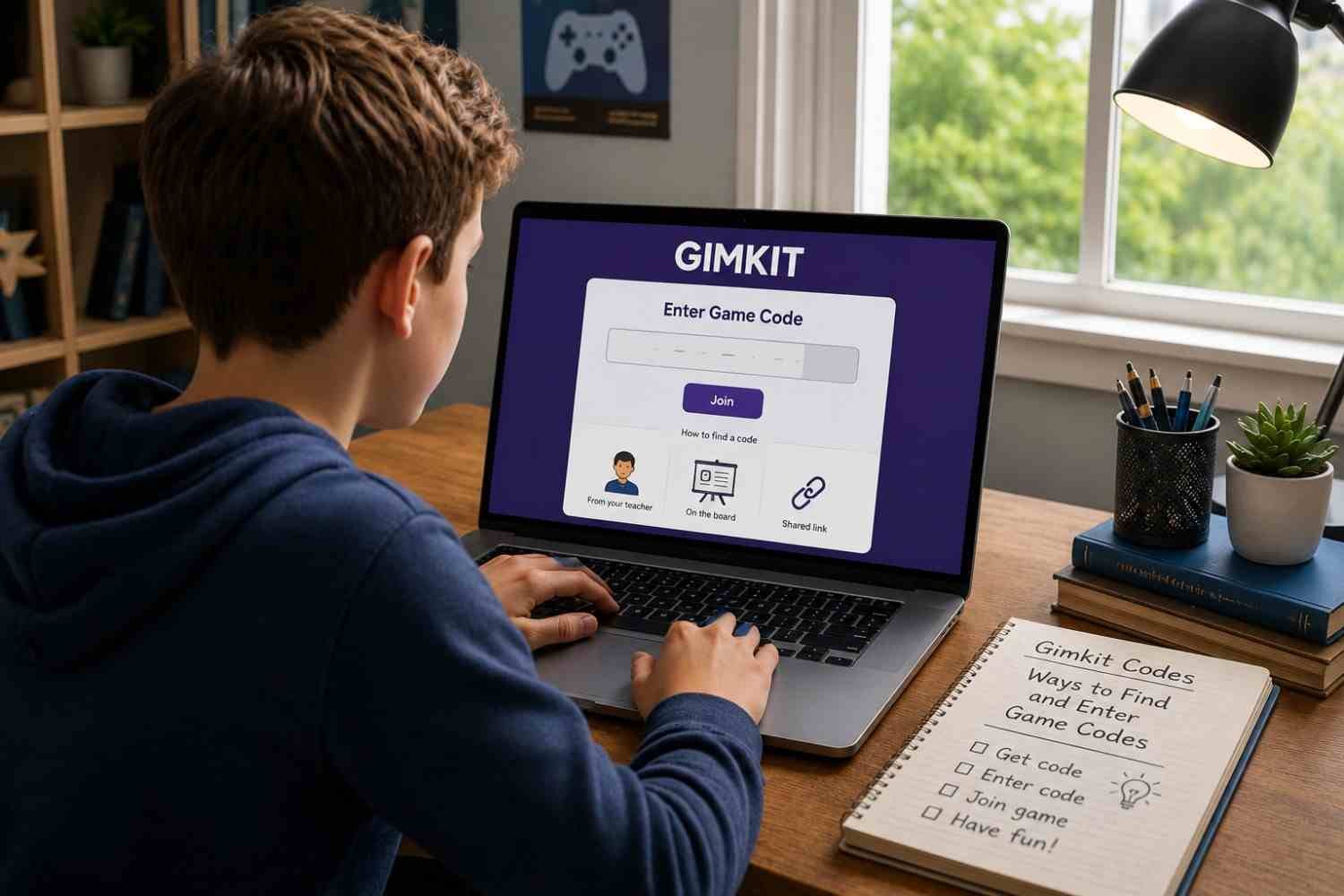
I first noticed how quickly a Gimkit game can get moving once a teacher displays a code. Students see a short number, type it in, and suddenly everyone is in the same lobby. The confusing part comes before that moment: finding the correct current code, knowing where to enter it, and figuring out what to do when the code refuses to work.
I also found that searching for Gimkit codes can create the wrong expectation. A live game code is generally tied to a particular session, so an old number found online may be useless. The process is simpler: get the current code from the host, use the official join option, and make sure the game is still open.
What Are Gimkit Codes?
A Gimkit code is a short code used to enter a live game hosted by a teacher or another organizer. The host starts a live session, and the code is shared with players who need to join.
A code is not normally a permanent password for a particular kit. A new live session can have a different code, even when the host uses the same questions. This is why lists of supposedly permanent or always-working codes can be misleading.
The code is usually six digits, making it quick to type on a computer, tablet, or phone.
Ways to Find a Gimkit Code
The most reliable source is the person hosting the game. In a classroom, check the teacher’s screen, projector, or shared display. The code should appear in the lobby when the game is ready.
A QR code can make joining easier. When available, students can scan it with a mobile device rather than manually entering every digit.
A direct join link is another convenient option. A teacher may share it through a classroom platform, message, assignment, or email. Opening the link can take students directly to the joining page, reducing the chance of mistyping the code.
If you are looking for active Gimkit codes on your own, remember that sessions change. A code posted previously may already be expired because the host ended that game. Use a code shared for a current session rather than relying on random numbers.
How to Enter a Gimkit Code
Open the Gimkit join page and enter the current six-digit code supplied by the host. Follow the prompts, then enter the game lobby.
You may be asked to provide a name or choose a nickname. Once accepted, you should see the lobby and wait for the host to start the game.
A direct link can replace manual code entry. If your teacher sends one, opening it should take you to the correct joining flow. Students using connected classroom features may also have an easier sign-in experience, depending on how the teacher configured the class.
Why a Gimkit Code May Not Work
A nonworking code does not always mean you entered it incorrectly. The live session may have ended, the host may have stopped accepting players, or the game may not have started yet.
Start by checking every digit. Six-digit codes are easy to mistype, especially when someone reads them aloud across a busy classroom. If the number looks correct, ask the host to confirm that the session is still active.
Late joining is another possibility. Hosts can configure live games with settings that affect whether additional students can enter after play begins. If you arrive after the game has started, the host may need to change the setting or restart the session.
Browser or connection problems can also interfere. Refreshing the page, checking your internet connection, or opening the join page again can resolve a simple technical hiccup. If classmates have the same problem, the issue is more likely to be with the game session than your device.
Can You Join Without a Gimkit Account?
Students can join live games without necessarily creating an account. That makes Gimkit convenient for classroom activities where a teacher wants players to participate quickly.
However, account-based classroom features can change the experience. If your teacher uses connected classes, signing in may help identify students and streamline participation.
The key point is that an account and a live game code are different things. A code connects you to a particular session, while an account can provide additional features and continuity across Gimkit activities.
Tips for Finding Legitimate Gimkit Games
When searching for Gimkit games, prioritize codes shared by a teacher, host, or trusted classroom source. A code that works today may stop working later, so freshness matters more than finding a giant list of numbers.
Be cautious with pages promising unlimited active codes or guaranteed access to private classroom games. For most students, the simplest route is to use the code or link provided by the person running the game.
If a teacher shares several joining options, choose whichever is easiest for your device. A QR code can be fastest on a phone, while a typed code may be more convenient on a school computer.
FAQs: Gimkit Codes: Ways to Find and Enter Game Codes
1. Where do I enter a Gimkit code?
Go to the Gimkit join page and enter the current six-digit code provided by the game host. Follow the prompts to enter the lobby.
2. Are Gimkit codes permanent?
Usually not. A live-game code is associated with a particular session, so it can become unusable after the host ends the game.
3. Can I join Gimkit with a QR code?
Yes. When the host provides a QR code, you can scan it with a compatible device to access the game’s joining page without typing the code manually.
4. Why does my Gimkit code say it does not work?
Check the digits first, then confirm that the game is still active and accepting players. The host may have ended the session or disabled late joining.
The Simple Part Is Knowing Where to Look
Once you understand how live Gimkit sessions work, finding a usable code becomes much less mysterious. The important detail is not finding a permanent number online. It is getting the current code from the person hosting the session and using the joining method that fits your device. That distinction saves time and avoids confusion surrounding expired codes.
A working code is simply an invitation to a live game. Get it from the right source, enter it carefully, and the rest is straightforward.