
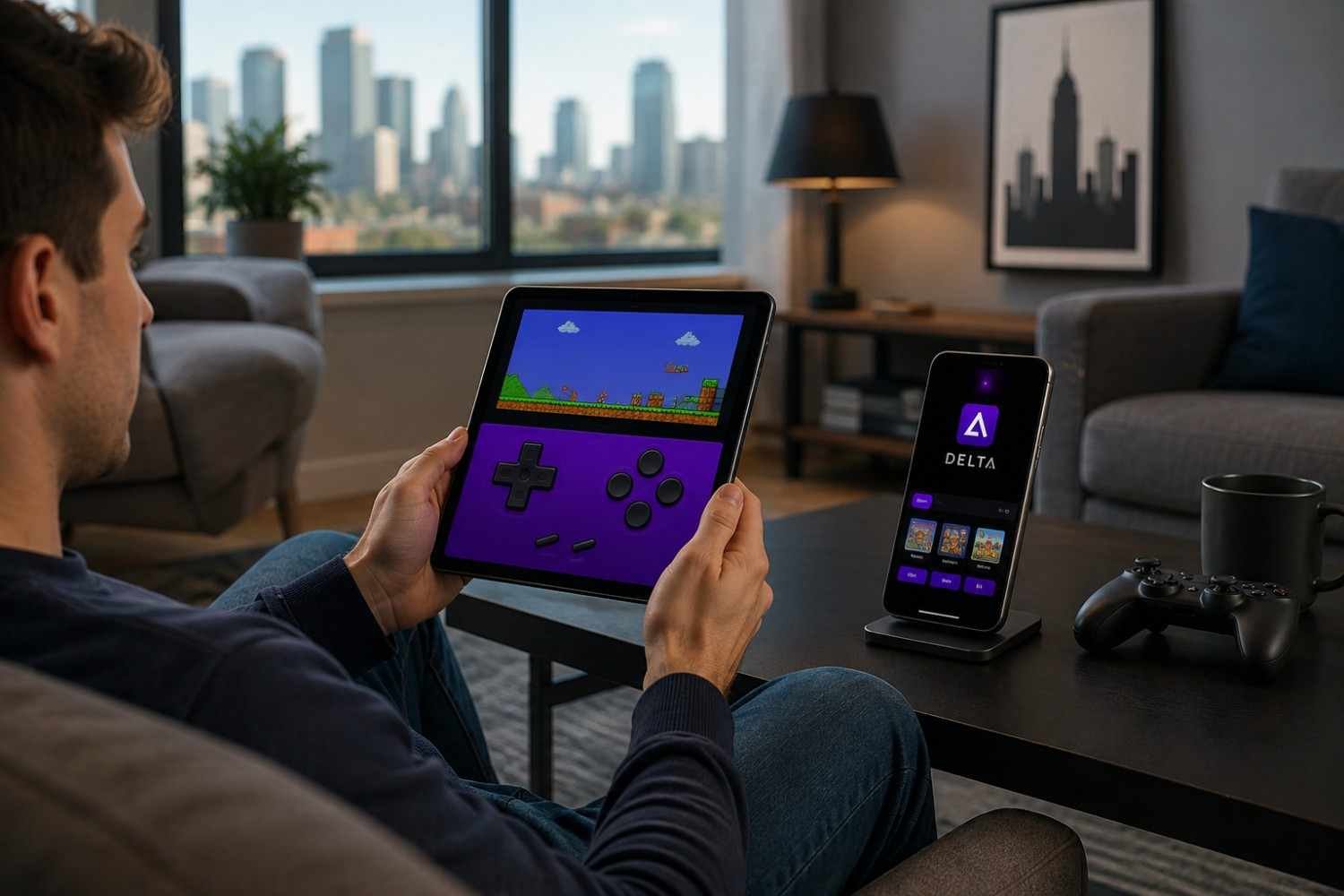
I remember when playing older console games on an iPhone felt like a complicated project rather than something you could set up in a few minutes. Finding the right emulator, figuring out sideloading, and wondering whether a download could be trusted often made the process feel harder than the gaming itself. Seeing Delta become available through the App Store changed that experience considerably, especially for people who simply want to revisit classic games without modifying their device.
I also found that getting started is only part of the experience. Once Delta is installed, small choices around file storage, controllers, save states, and settings can make a big difference. The app is designed to bring several generations of classic gaming into one place, but knowing what it supports and how to set it up safely makes the experience much smoother.
What Is Delta iOS?
Delta is a game emulator designed for iPhone and iPad that lets users play supported classic console games through a modern iOS interface. Rather than requiring a separate device for every older system, it brings several Nintendo platforms together in one app.
The current App Store version supports NES, SNES, Nintendo 64, Game Boy, Game Boy Color, Game Boy Advance, and Nintendo DS. It also includes features designed around modern mobile gaming, including save states, controller support, fast-forwarding, customizable skins, and synchronization options.
That combination is what makes Delta different from simply running an old game on a phone. It provides an interface built around touch controls while also working with physical controllers and larger iPad displays.
Is Delta Safe to Use on an iPhone or iPad?
For most users, the safest setup is to download Delta through Apple’s official App Store when it is available in their region. This avoids the need to jailbreak the device or install an unknown application package from a random website.
That distinction matters because searches for iOS emulators can lead to unofficial downloads, modified applications, or websites asking users to install configuration profiles. Those methods can introduce unnecessary security and privacy risks.
Downloading the official application also makes updates much simpler. Instead of manually replacing an emulator when a new version appears, App Store distribution handles updates through the normal iOS process.
Safety also extends to the game files you import. Delta does not give you a library of copyrighted games. You need to use game files that you have the legal right to use and keep those files in storage you trust.
How to Set Up Delta on iPhone or iPad
The basic setup is straightforward.
First, search for the official Delta game emulator in the App Store and install it. Once the application opens, you can begin organizing your game library.
If your legally obtained game files are already stored on your device or in a service such as iCloud Drive, the Files app can make them easy to access. Delta’s import process lets you bring compatible files into the library without requiring a computer for every transfer.
Keeping your original files backed up is sensible. If you remove an imported game or change devices, having your own organized backup can save time.
For Nintendo DS games, the setup can require additional system files. Delta’s documentation and current support information should be checked for the specific requirements of your version, rather than downloading BIOS files from an unknown source. This is particularly important because random “BIOS download” websites can be unreliable and may bundle unwanted files.
Which Systems Does Delta Support?
One of Delta’s biggest advantages is its broad range of supported classic Nintendo hardware.
You can use it for games originally released on systems such as:
- NES
- Super Nintendo Entertainment System
- Nintendo 64
- Game Boy
- Game Boy Color
- Game Boy Advance
- Nintendo DS
The exact experience varies by system. A Game Boy title naturally works well with a simple portrait-oriented touch layout, while Nintendo DS games have different input and screen requirements.
The official App Store listing is the best reference for the currently supported platforms because emulator support can change as development continues.
What Makes Delta Useful on iPad?
The iPad offers a different kind of Delta experience because the larger display gives the virtual controls and game screen more space.
That extra room can be valuable for Nintendo DS titles, where managing multiple screens and touch interaction can feel cramped on a smaller phone. iPad multitasking features can also make the device more flexible when you move between apps.
For someone who already owns an iPad, Delta can therefore function as more than a phone-based retro emulator. Combined with a Bluetooth controller, it can create a comfortable setup for longer gaming sessions without needing a dedicated handheld.
Keep Your Game Library Organized
A little organization makes Delta easier to use over time. Instead of dumping every game into one folder without a system, keep your original files organized by console or another naming method that makes sense to you.
Cloud storage can be useful for keeping your personal game files accessible across devices, but remember that storage and synchronization do not automatically give you rights to copyrighted game files.
It is also worth backing up important save data. Losing progress after spending hours on an older game can be more frustrating than the original difficulty.
A Better Way to Approach Delta
Delta works best when you treat it as a modern interface for games you already have the right to play rather than as a shortcut to a huge library of free downloads. The App Store installation removes much of the technical friction that once surrounded iPhone emulation, while features such as controllers, save states, custom skins, and synchronization make older games easier to enjoy on current hardware.
The safest experience is also the simplest one: use the official app, keep your device updated, manage your own game files responsibly, and avoid questionable downloads that promise something the legitimate app does not.
FAQs: Delta iOS Emulator for iPhone and iPad: Safe Setup Tips and Features
1. Is Delta available on the App Store?
Yes. Delta is available through Apple’s App Store in supported regions, allowing users to install it without jailbreaking or traditional sideloading.
2. Can Delta play games from multiple consoles?
Yes. It supports several classic Nintendo systems, including NES, SNES, Nintendo 64, Game Boy, Game Boy Color, Game Boy Advance, and Nintendo DS.
3. Do I need a controller to use Delta?
No. Delta includes on-screen touch controls. A compatible Bluetooth controller is optional but can make longer gaming sessions more comfortable.
4. Does Delta include games?
No. Delta is the emulator, not a game library. Users need to provide compatible game files they have the legal right to use.
Why a Simple Setup Is Usually the Better One
The appeal of Delta is not just that it brings classic gaming to an iPhone or iPad. It makes the experience fit more naturally into devices people already use every day. A straightforward installation, flexible controls, save states, customizable skins, and support for several generations of games remove much of the friction that once surrounded mobile emulation.
For anyone setting it up, the smartest approach is to keep things clean and legitimate. Start with the official app, use trustworthy storage, understand what each feature does, and avoid shortcuts that create more risk than convenience.